
Listing photo’s on Etsy can make or break a sale – it’s usually the first thing that catches a potential customers eye, and can be the reason they click on to your item to find out more about it from a sea of search results. I’ve mentioned previously that I am not the best photographer but am constantly striving to do better.
But there are a lot of factors that need to be taken into account, size being one of the most important.
You want the item you are selling to be the main focus, and have it positioned so if Etsy is showing someone your image in a rectangular or square format, it looks good either way. So it’s best to keep it central with space around it.
You can upload up to 10 photos and a short video, and this is where you can zoom in on key features.
But it’s not just Etsy where you have to show off your items.
Posting on Social Media can be so important to help both my Etsy stores and YouTube channel, and keeping on top of posting to them all can be difficult.
The main ones I try and use are Instagram, Facebook and Pinterest, but once I’ve worked on my Etsy listings, or uploaded a YouTube video, I forget about promoting it. I generally remember to post things to my personal Facebook page, but rarely add it to Instagram and Pinterest, and my Facebook business page
They all have different preferences when it come to image size so they look great on everyone’s feed whether they are using a desktop or mobile device, and trying to accommodate them all with a single image, can be difficult; especially as I’m not the greatest photographer.
I’ve been creating some AI images using Bing Image Creator, which uses Dall-e 3.
Although free, it has its limitations, and getting the prompts right can be tricky and can take a few goes to get what you need. However, you can make tweaks and customise images by removing specific items/areas etc using Microsoft Designer.
From my prompt of “cute home office, with a plain white small square artist canvas on a desk facing forwards” the image below was one of the results; usually a prompt will produce 4 images. I was then able to customise it and remove the face on the canvas.

Using Affinity Photo I wanted to resize the image so I could place a PNG of the decal I’ll be selling onto the now blank canvas.
I used the rectangle tool to draw a square 6×6 inches, as that’s the size of the boxed canvas I added the decal to in my recent YouTube video.
Clicking on the image gave me a bounding box, and I used the handles that appear on the edges and corners, to drag it to the size needed so the canvas in the image matched the 6″ square I’d added as a guide. As I wanted to keep everything in proportion, I used one of the corner handles; or you can hold down the shift key as you drag from any of the other points.
Then I had to make it “social media friendly” for the platforms I use.
I again used the rectangle tool to create 1 for each of the preferred sizes for Pinterest, Instagram and Facebook, and copied my image so I had 3.
The fill for each rectangle was set to empty, but I added a small border, in my branding colour – which I like to do so if anyone is seeing several different images in search results it’s an indicator they are from the same person.
I usually keep my Facebook pics square, and used the same size I would for Instagram, but a google search showed me it actually preferred a rectangle; which when I posted the image to Facebook as a test, did look nice.
Next I dragged each of the images into a different rectangle, and I could position them how I wanted; but the original images are still intact, they haven’t been cropped.
Then I can clicked on each individually and exported just the area selected each time.
And here is a side by side comparison
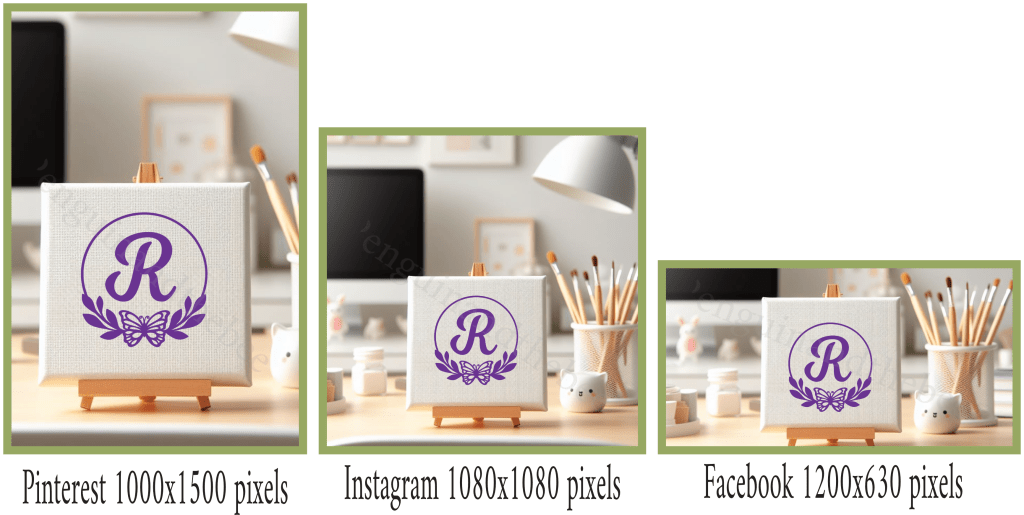
Previously I set up templates in Affinity for each, but to make it quicker I’ve now saved a template with the 3 sizes altogether.
And now that I have the mock-up saved, I could remove this decal PNG and add a different one.
You can of course do similar in other software, the Affinity suite is just my preference.
 Penguin and the Bee